Showing posts with label how_to. Show all posts

Tuesday, October 22, 2013

Notify AD User About Password Expiry via email

I had a customer whereby their users are highly mobile, the issue he had is those mobile users often got their account locked due to password expiry policy, and he had to remotely unlock their AD account on weekends and late night, so he ask me for a solution regarding this.

We can resolve the issue by combining PowerShell script with Task Scheduler to automate the task. Here is how to do it:


  1. Download "Password Expiry Email Notification" Powershell script which created by MVP Robert Pearman here
  2. Open the downloaded file via Notepad, modify the smtpServer,from, expireindays field base on your needs and environment configuration.
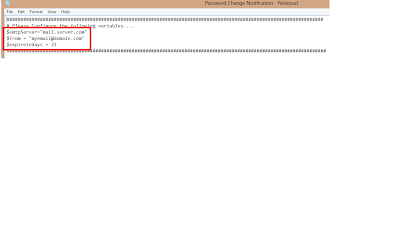
  3. Save it to the desired folder after you have done it.
  4. Launch a Task Scheduler and select "Create a basic task",give it a proper name and description. Click "Next".
  5. On the Trigger field, select "Daily", click "Next".
  6. Determine the start date and time, for example every 9am daily, insert "1" in recur every _ field. Click "Next"
  7. On the Action field, select "Start a program", click "Next"
  8. Insert "powershell -file "C:\scripts\Password Change Notification.ps1", click "Next"
  9. Click Yes on the following dialogue box.
  10. Click "finish" and "OK" to exit the task scheduler.
By doing so, the script will be executed daily 9am and it will send the notification to users that password is going to expire within the defined variable.

Saturday, July 20, 2013

Exchange 2010 - Deleted Mailbox Not Appearing in EMC Disconnected Mailbox

I was working on one issue that my customer had, the disconnected mailbox does not appear immediately in the EMC when he accidentally disconnect one of the user's mailbox.

 The reason behind is the online maintenance wasn't complete and below is the powershell command that will show the disconnected mailbox on  the EMC.

Get-Mailboxdatabase | Clean-Mailboxdatabase

By running the command it will clean all the databases in the entire organization,  the disconnected mailbox should display in the EMC now.

Windows Server 2012 Hyper-V - Disk Error Read Only

I was working on one project that ran into a small issue, when I try to save a VM into the SAN, "Disk Error Read Only" appears. I resolve this issue by running:

1. open "CMD"
2. type "diskpart"
3. list disk (determine the correct disk that having the issue)
4. select disk 1 (for example disk 1 is the one that causing the issue)
5. attributes disk (list the attributes of disk 1)
6. attributes disk clear randomly (set the randomly attribute to no)
7. attributes disk (display the new result after step no.6)
8. exit


Thursday, April 18, 2013

Exchange 2010 Unable to Relay Email : Error 451 4.4.0 DNS Query Failed

I'm working on a support request today, my customer found that they cannot send email to certain domain.

Upon opening the queue viewer in EMC, I found that there are Error 451 4.4.0 DNS Query Failed appear on the domain that my user tried to send to.

I've try using telnet command to send email to that domain but without success, the moment when I hit enter on the RCPT TO: someone@domain.com, Error 451 4.4.0 DNS Query Failed appears.

When I performed a nslookup and MX lookup on the target domain, it can be resolved successfully via local  AD DNS server.

Looking into the error and since my customer's messaging infrastructure design is to send emails directly to internet without routing to any smart host, I decided to use the well known Google DNS 8.8.8.8 on Exchange server to route email instead of the AD DNS. When I hit "retry" on the mail queue, the email was transferred immediately.

Below is the steps on how to configure it.

1. Open Exchange Management Console (EMS)
2. On Server Configuration -> Your HUB server -> right-click Properties
3. Click the "External DNS Lookups" tab.
3. Tick "Use These DNS Servers" , click "Add" and insert 8.8.8.8 (Google DNS)
4. Click "OK"
5. Go to Organization Configuration -> Send Connector -> right-click Properties
6. Click the "Network" tab.
7. Tick "Use the External DNS Lookup settings on the transport server"
8. Open "Queue Viewer" on "Tools"
9. Find the targer domain queue, right-click retry

The email is being transferred by now after applying the settings.

Tuesday, July 17, 2012

TMG 2010:Login To OWA Without Domain

Some company would simplified the process of lo gin to Outlook Web App (OWA), for instance redirect from HTTP to HTTPS, which is very convenient for users because  they don't need to remember to key in "S" when they want to access OWA.

Another example is they could log in without domain name (domain\username), especially when one company could have different internal & external domain name, they wouldn't want user to get confused about it so they decided to have only username as the log in name.

The steps above is easy to configure in Exchange CAS server, but if you have a TMG server in place, you will need to configure it in TMG server but not CAS server.

Navigate to C:\Program Files\Microsoft Forefront Threat Management Gateway\Templates\CookieAuthTemplates\Exchange , look for a file name "string" and open it. (Strongly recorded to backup the file before you start modifying it)

Inside the string file locate the _UserName_Text="Domain\user_name:"

remove domain\ and it should look like _UserName_Text="user_name:" 

Save it and reboot TMG server and you should be able to log in without inputting domain now.


Remember to perform the same step if you have an array of TMG servers.


Tuesday, May 29, 2012

Redirect Outlook From Direct Server Connection To CAS Array


Microsoft has been always advice customer to configure CAS Array although there is only one server needed, unfortunately not many people is following this best practice.

My customer is going to deploy HA for their environment, which originally consist of 1 CAS/HUB server and 1 Mailbox server. Now they planning to have 1 more CAS/HUB server and mailbox server for HA purpose.
All the client is currently connected directly to the CAS and when  the new CAS is in place, I need to redirect them to connect to CAS Array.

There is around 700 users in the organization and I’m planning to perform the migration in a big bang strategy and minimize user’s downtime, so, I achieve the goal by using below steps:
  
1. Delete the old CAS DNS A record.
2. Create DNS A record for CAS Array.
3. Dismount all databases and re-mount them.
4. Outlook will perform a new autodiscover search and connect to CAS Array.

I hope this could help you to perform the migration with minimal user impact if you have a similar situation like this.


Friday, May 4, 2012

Deploying Lync Mobility With TMG Single NIC Configuration

I finally managed to deploy Lync mobility service today for my company's Lync server ever since Lync mobility was introduced few months back. You can find many useful deployment guide over the internet if you do a search, but what I would like to share is some experience about deploying Lync mobility services with TMG single NIC configuration which I found it is quite rare since most of the guide you found is mostly about having 2 NICs TMG configuration.

In my environment the TMG server is already in use to publish Exchange web services(OWA, Active Sync, Outlook Anywhere) . Since this is a single NIC TMG, you can only create one listener. If you try to create another listener for Lync services,  an error “A web listener specifying the same port and similar IP Addresses already used by the rule “[Your_Exchange_Services_Rule]”. The port and IP addresses specified in a Web Listener cannot overlap with the IP addresses specified web listener already used in a different rule”


To overcome this issue, simply use the same listener with a SAN certificate that contains both Exchange and Lync services FQDN.

For example, my original SAN certificate for Exchange is inclusive of webmail.domain.com , autodiscover.domain.com. I regenerated a new certificate in Exchange server with additional SAN which is required by Lync mobility services - lyncdiscoverinternal.domain.com , lyncdiscover.domain.com and etc.

After that, I went ahead to request new certificate from Lync Front End server with the same SAN (inclusive of Exchange web services FQDN) and we are almost good to go.

In TMG server I removed the original listener, and created a new listener by using the certificate which is newly created (In my case I export the certificate from Exchange server), followed by creating a new publishing rule for Lync discovery. When the rule is created and the moment I clicked "Test Rule" , it is showing a positive passed result and Lync mobility is ready to go live!

This is just an overall concept on how to deploy Lync mobility with TMG single NIC configuration, I hope this will at least provide you with some ideas if you have the same environment as mine.


Tuesday, August 16, 2011

How To : Update Offline Address Book(OAB), and distribute to all users immediately

Due to some reason, my customer wants to update the OAB and distribute to all users immediately today. Here is it can be done:

Normally Exchange will run into maintenance mode at daily 5am(by default),during this time, Exchange will distribute the latest version of OAB to all users. User’s outlook client will automatically download the OAB generated by Exchange during next logon.

Today I’ll show you how to make a force update and distribution of OAB to user manually without waiting for Exchange to enter maintenance mode.

First,open EMC in Exchange server, under Organization pane, click the Offline Address Book tab, right-click on the Default Offline Address book and select Update.

Once it is done, open Services on CAS server. Look for a service name Microsoft Exchange File Distribution and restart the service. 

Once the service is restarted, Exchange will automatically distribute the updated OAB to all users, where users can see the changes\updated OAB without waiting till Exchange enter maintenance mode.

Saturday, July 30, 2011

Outlook 2010 Autodiscover Prompt For Password

I received complain from one of my customer saying that user is getting prompt for password when the open the outlook client.

There is a box pop up for username and password,displaying "Connect to Autodiscover.abc.com"

Although he select "remember my password", the box will prompt again when he close and re-open the outlook client.

I type https:\\server\autodiscover\autodiscover.xml and make sure that it is valid, I also make sure the internal and external url of autodiscover is correct by running commandget-autodiscoverinternalurl and get-rutodiscoverexternalurl .


At the end,I found out that it is cause by the proxy settings. After adding the CAS array url into bypass proxy setting, the problem resolved.


I update the GPO and push it to all the client so that they can get rid of it.